This follows on from: Generative AI for Genealogy – Part V
Adding the intelligence with Tool Calling
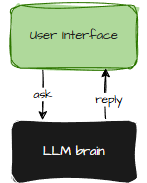
If you strip the genealogy chat app down to its bare essentials, you’re left with two main characters:
- A user interface where humans type things, and
- A large language model that tries its best to answer without hallucinating your great‑grandmother into a 14th‑century Viking.
Technically, yes, there’s more to it: licensing, revenue protection, token optimisation, the occasional existential crisis – but those are my problems, not the reader’s.
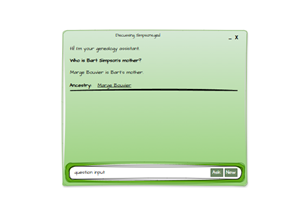
This is how the whole adventure began. I built a simple form: a text box for the question, a button to submit it (or the Enter key, for the impatient), and a space to show the answer. It looked exactly like the early designs I shared. I pressed Enter. The LLM replied. I sat back, triumphant.
“Brilliant,” I thought. “We’re done. Ship it. Next project.”
If only.
Because whether you’re using GPT4All locally or a cloud‑based LLM, the journey always starts the same way: you take the user’s question, wrap it up neatly, send it off via a REST API, and then wait – sometimes patiently, sometimes with the energy of someone refreshing a parcel tracking page every 30 seconds. If you’re fancy, you implement streaming responses so you can watch the answer appear like a slow‑motion typewriter. If you’re not, you just stare at the spinner and hope.
Different LLMs expect slightly different request formats, but the underlying idea never changes. Earlier in the series, I talked about sending skill‑determination prompts without diving into the mechanics. But now that we’re stepping into the world of chat and tool calling, we can’t dodge the details any longer.
For Your Own Good…
If you’re following along at home, and especially if you’re experimenting with your own data, there are two settings you absolutely must get right before you go any further:
- Enable Datalake = OFF
- Enable Local API Server = ON
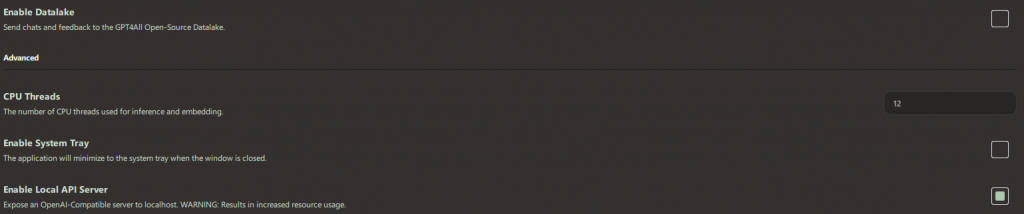
The first one depends on what you’re building, but if it’s not OFF, then every prompt you type is being shared externally. At that point, the horse hasn’t just bolted, it’s halfway to France and posting selfies from the ferry. If you believe in privacy (and I’m guessing you do, given you’re building a genealogy app), then keep this switched off.
The second setting is non‑negotiable. Without the local API server, you’ll spend a good hour wondering why the LLM is giving you the silent treatment before you’ve even had the chance to annoy it. Once enabled, you get a REST endpoint at: http://localhost:4891/v1/chat/completions.
This is where your app will send its questions, and where the LLM will (hopefully) send something intelligent back.
Next, head over to the Models section and download a few. The model name you see there is the exact string you’ll need when calling the API. Copy it precisely, capitalisation, punctuation, underscores, the lot. If you get it wrong, the LLM won’t complain; it’ll just stare blankly into the void, which is somehow worse.